# Azure-hosted deployment

### 1. Log in or Sign Up to the Virbe Platform

The process of deploying Virbe app in your Azure resources starts in Virbe platform. Navigate to Virbe Hub: [**Log in**](https://hub.virbe.app/login) to your Virbe account or [**sign up** ](https://hub.virbe.app/signup)and create an organization if you don't have an account yet.

### **2. Launch a new being in Virbe Hub**

**Getting Started**

After the initial setup of the account, you'll land in Virbe Hub – a place with an overview of all your virtual beings. Each virtual being created will have a dedicated dashboard launched, where you'll manage all the important parts of its operation.

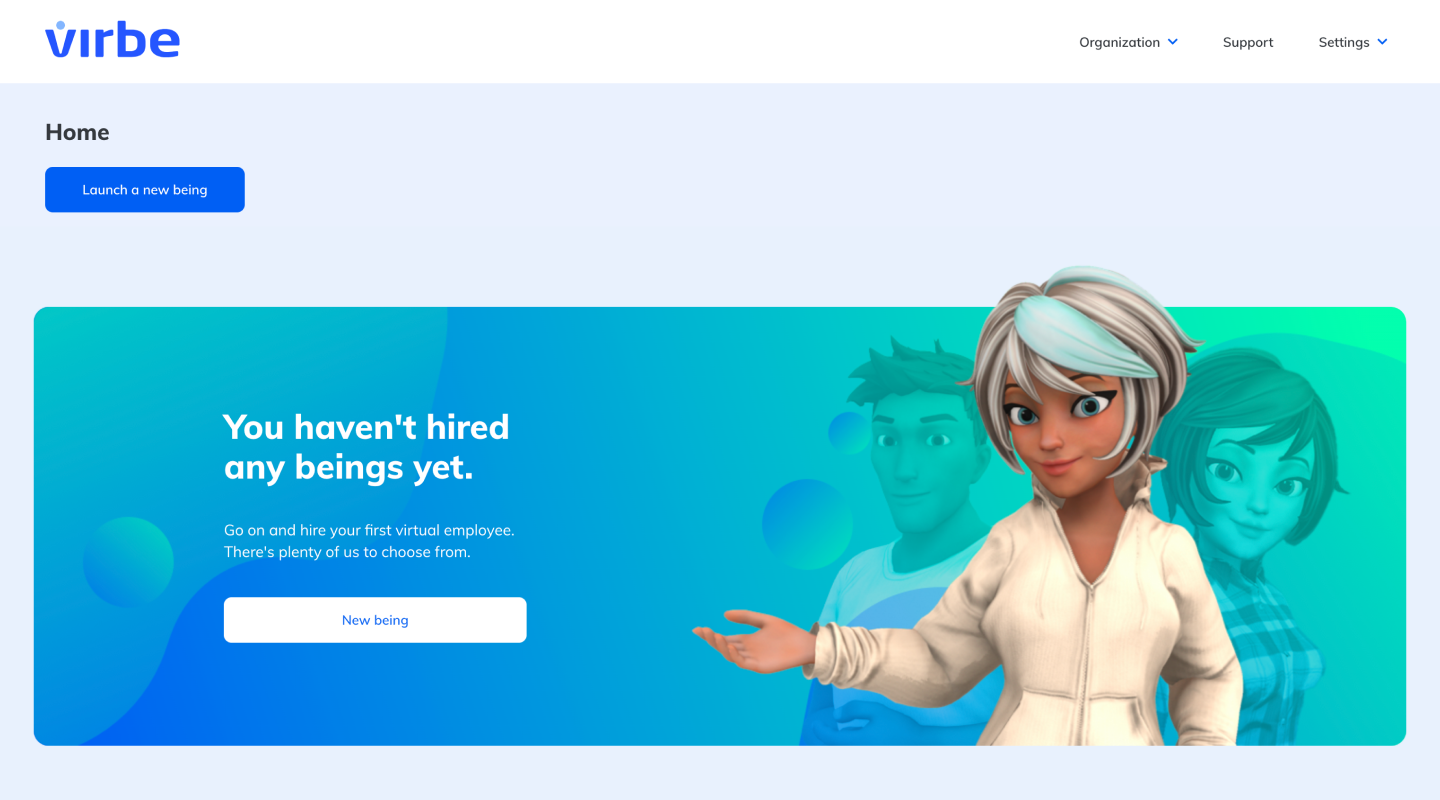
<figure><img src="https://1213579860-files.gitbook.io/~/files/v0/b/gitbook-x-prod.appspot.com/o/spaces%2F-MaU7JJyoXT5PfhTD9dJ%2Fuploads%2FUBxV4mZzTgiZMJp3rIQR%2FHub%20%E2%80%93%20Home%20%E2%80%93%20Empty.png?alt=media&#x26;token=2c8358dd-0581-4d40-abd8-df0dc10e2f82" alt=""><figcaption><p>Virbe Hub Home: Empty</p></figcaption></figure>

At the beginning you won't have any virtual beings created yet (or hired, as we call it). To hire your first digital assistant, click on “Launch a new being”, which will start a straightforward 2-step process:

#### Step 1: Preferences

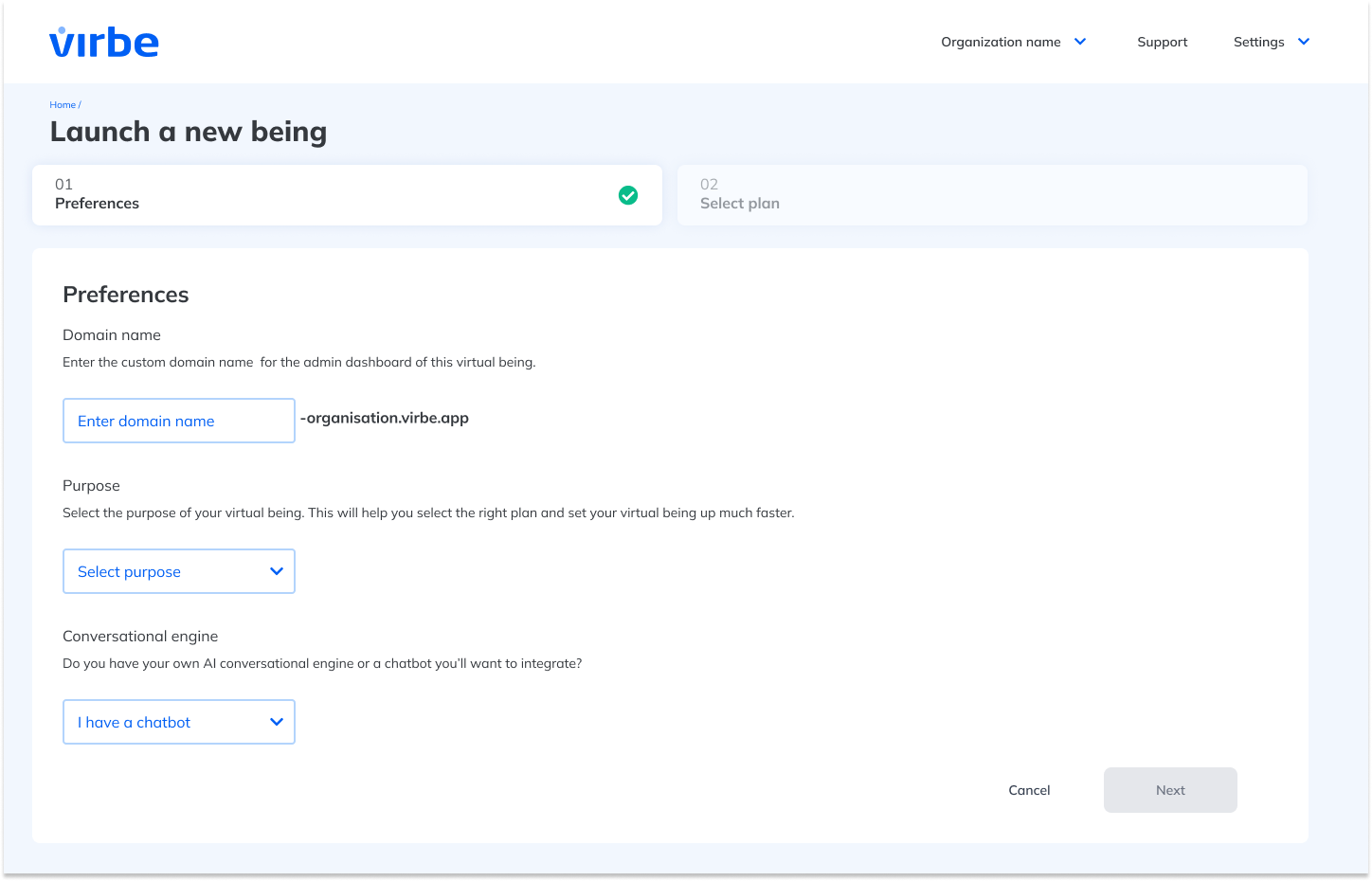
You will be prompted to select initial preferences for your virtual being. This includes under what domain it will be launched, its purpose, and information about conversational engine.

<figure><img src="https://1213579860-files.gitbook.io/~/files/v0/b/gitbook-x-prod.appspot.com/o/spaces%2F-MaU7JJyoXT5PfhTD9dJ%2Fuploads%2FkyXCD8eRsWLK4xPHCb6p%2FHub%20-%20Launch%20a%20new%20being%20-%20Step%201.png?alt=media&#x26;token=1036845c-7788-45d5-85ec-9e62bb374a7e" alt=""><figcaption><p>Launching a new being: preferences</p></figcaption></figure>

#### Step 2: Select Plan and save the license key

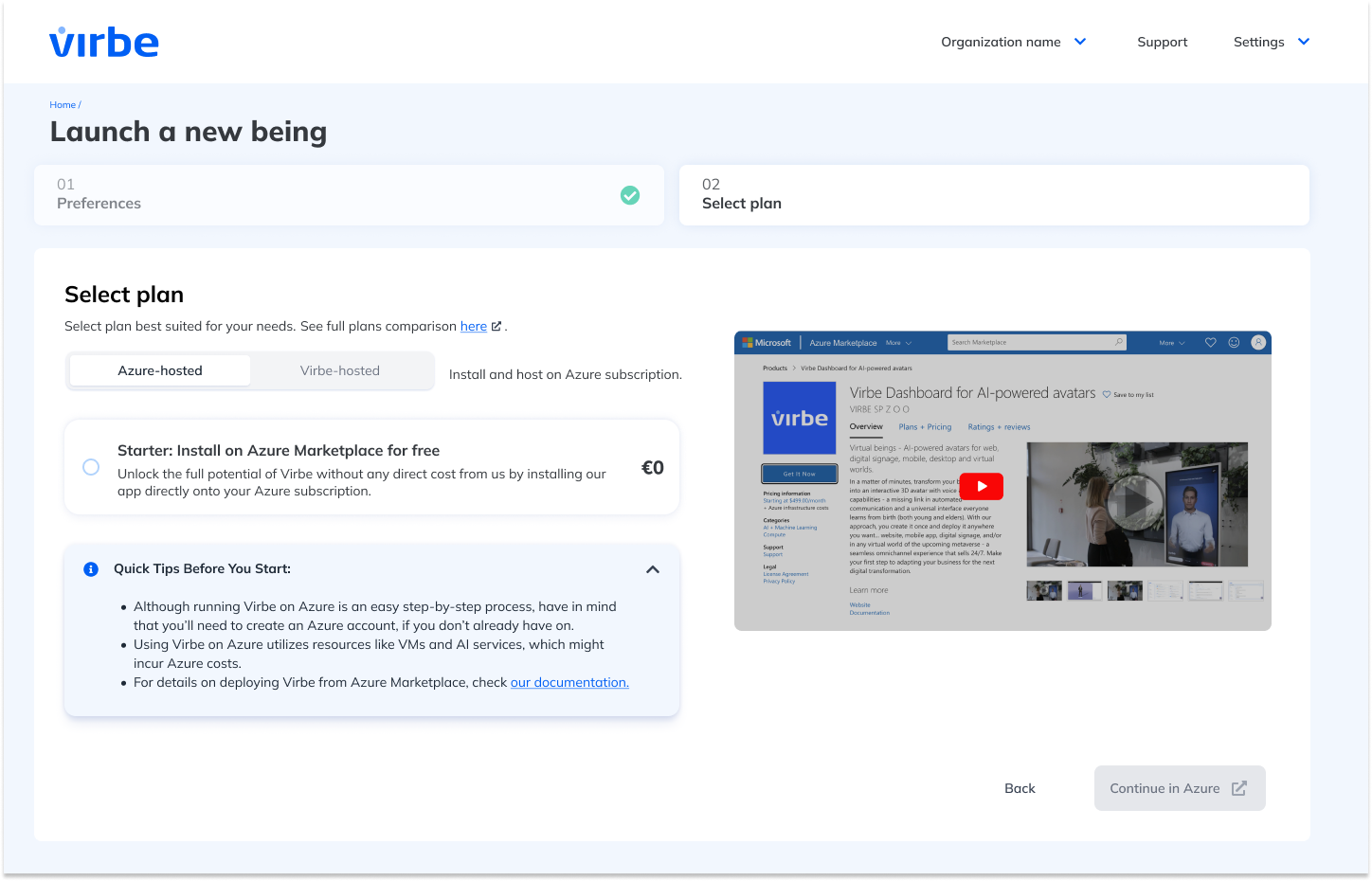
In this step, you need to choose a hosting variant first, using a tabs component above the plans. Make sure "Azure-hosted" option is selected. Then select a plan accordingly, you can start with a free Starter plan.&#x20;

<figure><img src="https://1213579860-files.gitbook.io/~/files/v0/b/gitbook-x-prod.appspot.com/o/spaces%2F-MaU7JJyoXT5PfhTD9dJ%2Fuploads%2FRhnDjjGIToaAlL0wfK9x%2Fimage.png?alt=media&#x26;token=d16b00b2-b098-4b37-9400-6bcb1780bbc6" alt=""><figcaption><p>Azure-hosted plans in Virbe Hub</p></figcaption></figure>

Once you click on the plan, you will see a unique license key that you'll need on later stages directly in your Azure dashboard, **so make sure to copy it and store safely for later use.**

<figure><img src="https://1213579860-files.gitbook.io/~/files/v0/b/gitbook-x-prod.appspot.com/o/spaces%2F-MaU7JJyoXT5PfhTD9dJ%2Fuploads%2F4TqyOvwbq2LeuodQ5T6l%2Fimage.png?alt=media&#x26;token=2ea565c9-0b45-4fdf-ba2a-34f237b8ef3b" alt=""><figcaption><p>Select the plan and save the license key</p></figcaption></figure>

### **3. Deploy app in Azure Marketplace**

1. **Navigate to Virbe's app page in Azure Marketplace**: Once you've copied and saved the license key, process to Azure Marketplace by clicking on the "Continue to Azure" button. It will direct you to the [Virbe app page in Azure Marketplace.](https://azuremarketplace.microsoft.com/en-us/marketplace/apps/virbespzoo1616744596310.virbe-dashboard?tab=Overview)
2. **Add Virbe App:** Once you've landed on the page of the Virbe app page, click the "Get it now" button.

<figure><img src="https://1213579860-files.gitbook.io/~/files/v0/b/gitbook-x-prod.appspot.com/o/spaces%2F-MaU7JJyoXT5PfhTD9dJ%2Fuploads%2FubIR4Zi1SNSKechaYJOb%2FVirbe%20app%20in%20Azure%20Marketplace.png?alt=media&#x26;token=455ba0f7-3162-4b20-8f61-70c6438f50cf" alt=""><figcaption><p>Virbe app page in Azure Marketplace</p></figcaption></figure>

**Deploying Your App**

1. **App Creation**: Upon clicking "Get It Now", a dialog box will appear. Input and verify your data and click "Continue" to proceed to app creation.<br>

   <figure><img src="https://1213579860-files.gitbook.io/~/files/v0/b/gitbook-x-prod.appspot.com/o/spaces%2F-MaU7JJyoXT5PfhTD9dJ%2Fuploads%2FFuWdlTTvnjverpUFHjtq%2FAzure%20Marketplace%20account%20details%20dialog%20box.png?alt=media&#x26;token=6e3340b0-a13a-4b9d-8790-b09c1d9c2736" alt=""><figcaption><p>Azure Marketplace account details dialog box</p></figcaption></figure>
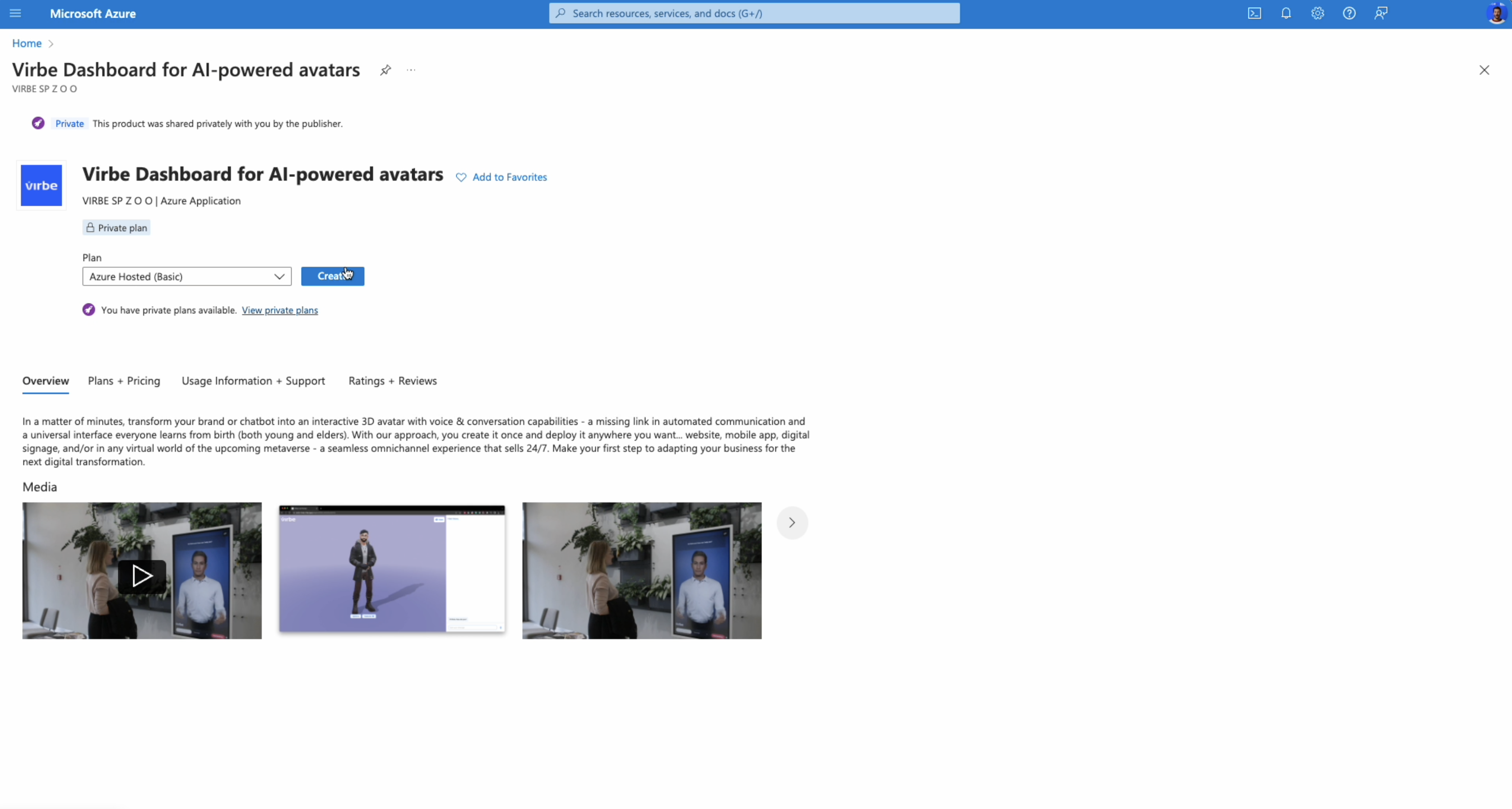
2. **Create plan:** Confirm the selection of available Plan and click Create.\
   &#x20;

   <figure><img src="https://1213579860-files.gitbook.io/~/files/v0/b/gitbook-x-prod.appspot.com/o/spaces%2F-MaU7JJyoXT5PfhTD9dJ%2Fuploads%2F9TPhI0NARh8rykTWX3Ac%2FCreate%20Plan%20on%20Azure%20subscription.png?alt=media&#x26;token=b0835b4b-6087-465f-8e83-6e42abb7a002" alt=""><figcaption><p>Click "Create" next to selected plan</p></figcaption></figure>
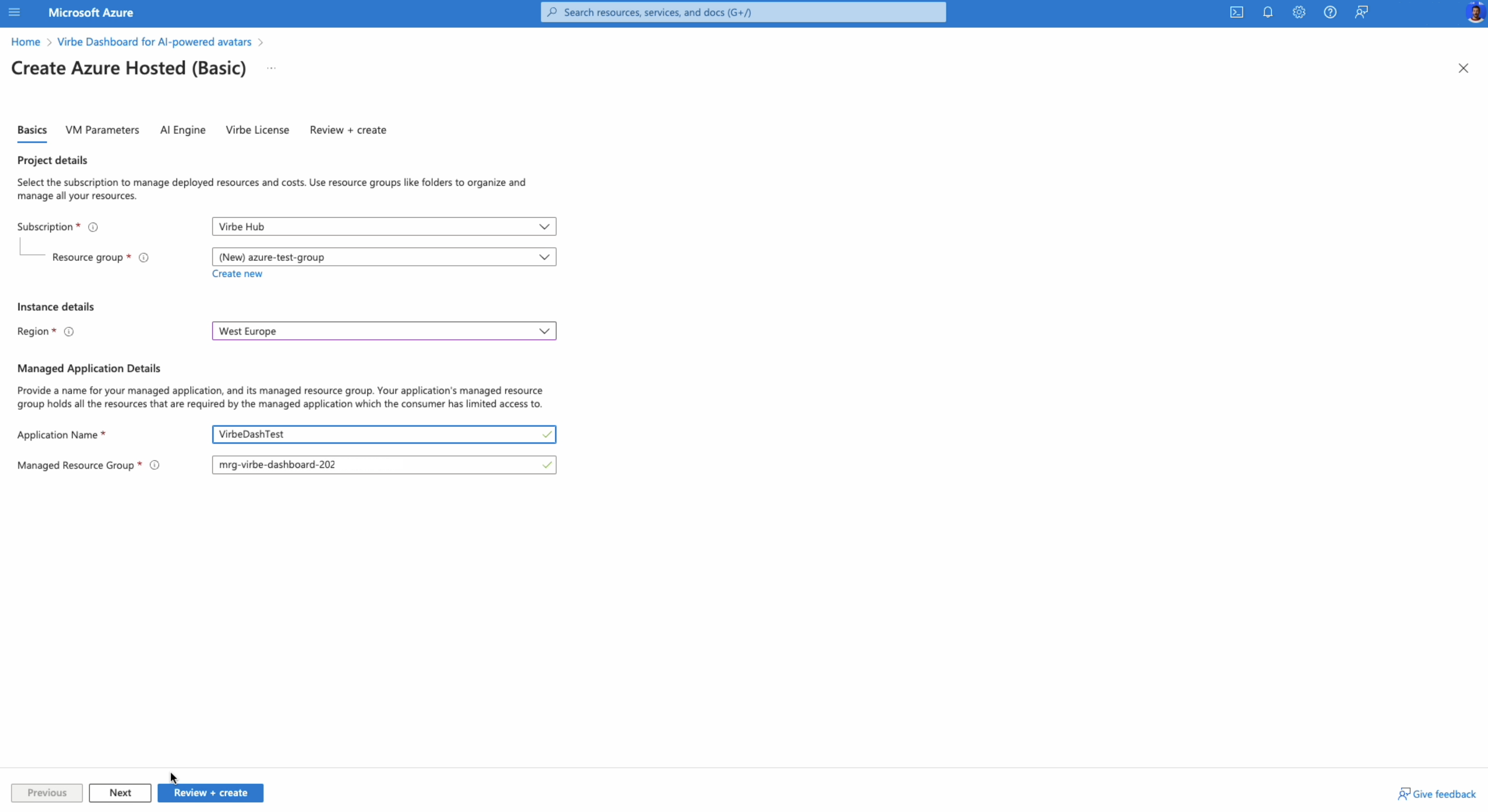
3. **Configure the Basics**:
   * **Subscription and Resource Group**: Select your subscription and either choose an existing resource group or create a new one.
   * **Instance Details**: Select the desired region for your Virbe app deployment.
   * **Managed Application Details:** Provide a name for the application and the resource group<br>

     <figure><img src="https://1213579860-files.gitbook.io/~/files/v0/b/gitbook-x-prod.appspot.com/o/spaces%2F-MaU7JJyoXT5PfhTD9dJ%2Fuploads%2FNLTGJ1QGA4QDLgukJeyM%2FAzure%20Configure%20basics.png?alt=media&#x26;token=f7cdbe95-35ff-4445-a32e-980909ab600a" alt=""><figcaption><p>Configure basics of the Azure deployment</p></figcaption></figure>
4. **Configure the Virtual Machine (VM) Parameters**:
   * &#x20;You can adjust the parameters of your VM or use the default values.
5. **Configure AI Engine:**
   * **Enable Azure OpenAI models:** If you don't have an existing chatbot and will want to use LLM models with Virbe's virtual beings, **check this box and deploy LLM on Azure.**
   * **Configure AI deployment parameters:** Choose region and LLM model, **have in mind that availability of models depends on the region selected.** Then select an Embedding model for Knowledge Base as shown below.<br>

     <figure><img src="https://1213579860-files.gitbook.io/~/files/v0/b/gitbook-x-prod.appspot.com/o/spaces%2F-MaU7JJyoXT5PfhTD9dJ%2Fuploads%2F83hNJN2wB5P7TePNVGch%2Fimage.png?alt=media&#x26;token=fe7e20f2-1932-4c01-92d3-011c6d548cd1" alt=""><figcaption><p>Enable OpenAI models for Virbe deployment</p></figcaption></figure>
6. **Virbe License:**
   * **Provide License Key:** Here you'll need to paste the License Key that was generated in Virbe platform upon creating new virtual being. If you don't have it saved yet, you can always go to your Virbe Hub and copy it again.<br>

     <figure><img src="https://1213579860-files.gitbook.io/~/files/v0/b/gitbook-x-prod.appspot.com/o/spaces%2F-MaU7JJyoXT5PfhTD9dJ%2Fuploads%2FqtuToQ3AAXueXrtrwAUd%2FLicense%20key.png?alt=media&#x26;token=5adc5f54-6b6e-4904-8461-1cdbd83fcf30" alt=""><figcaption><p>Provide Virbe license key</p></figcaption></figure>

     <figure><img src="https://1213579860-files.gitbook.io/~/files/v0/b/gitbook-x-prod.appspot.com/o/spaces%2F-MaU7JJyoXT5PfhTD9dJ%2Fuploads%2FUCikuxtCUWG82Ddbd3mT%2Fimage.png?alt=media&#x26;token=a77f0cbe-67da-4436-ad0c-aee65e63c082" alt=""><figcaption><p>Copy the previously created license key from Virbe Hub </p></figcaption></figure>
7. **Review and Create**: After configuring all the above, go to the "Next" step or click "Review and Create" directly, Azure will validate your configuration. Once that's done, review all your settings, including the cost, then click "Create" button.&#x20;

   <figure><img src="https://1213579860-files.gitbook.io/~/files/v0/b/gitbook-x-prod.appspot.com/o/spaces%2F-MaU7JJyoXT5PfhTD9dJ%2Fuploads%2FqPCPF9u8Q7eqsu4NxaGa%2FAzure%20Create.png?alt=media&#x26;token=87357402-63b8-4657-9eb5-e6be39ae8047" alt=""><figcaption><p>Review and Create deployment</p></figcaption></figure>
8. **Deployment**: Once the deployment starts, you will see the status in your Azure dashboard, until it changes to "Complete".

   <figure><img src="https://1213579860-files.gitbook.io/~/files/v0/b/gitbook-x-prod.appspot.com/o/spaces%2F-MaU7JJyoXT5PfhTD9dJ%2Fuploads%2FnC1m311ANjzx2zLgXE3H%2FScreenshot%202024-04-10%20at%2013.56.28.png?alt=media&#x26;token=5f3b8937-c451-4926-ace0-247a64e15944" alt=""><figcaption><p>Azure deployment in progress</p></figcaption></figure>

### 4. Wait for the launch to complete

Follow the on-screen instructions in Azure to monitor the deployment progress. You can also monitor the status of launching the being in Vurbe Hub. Once the deployment is complete and all the resources necessary to bring the virtual being to life are launched (which typically takes somewhere between 5 to 15 minutes), the virtual being's card in the Virbe Hub will turn green and the dashboard will become "Active.

<figure><img src="https://1213579860-files.gitbook.io/~/files/v0/b/gitbook-x-prod.appspot.com/o/spaces%2F-MaU7JJyoXT5PfhTD9dJ%2Fuploads%2F18VocLyDCCwEMCSGaCq7%2FFrame%2016.png?alt=media&#x26;token=2936e749-1a2b-4d02-808c-942e8a8622da" alt="" width="251"><figcaption><p>Active virtual being card in Virbe Hub</p></figcaption></figure>

Time to customize your virtual being! To read more on that, [go to the section on "Configuration"](https://docs.virbe.ai/dashboard-management).

Should you encounter any difficulties during the deployment process, please do not hesitate to reach out to us.